6-2 Docker Installation
Learning Objectives
After completing this chapter, you will understand the basic concepts of Docker and its importance in modern software development. You will master the complete installation process of Docker on a Linux system, from preparing the system to verifying a successful installation. Additionally, you will learn how to troubleshoot common installation issues and perform basic post-installation configurations and operations. This knowledge will provide a solid foundation for your further study of container technologies.
System Requirements
Before installing Docker, ensure your Linux system meets the following requirements:-
- 64-bit processor
- Linux kernel version 3.10 or higher
- At least 4GB of RAM
Docker Installation Steps on Linux
1. Add Docker's Official GPG Key
sudo apt update
sudo apt install ca-certificates curl
sudo install -m 0755 -d /etc/apt/keyrings
sudo curl -fsSL https://download.docker.com/linux/ubuntu/gpg -o /etc/apt/keyrings/docker.asc
sudo chmod a+r /etc/apt/keyrings/docker.asc
2. Set Up the Stable Repository
sudo tee /etc/apt/sources.list.d/docker.sources <
Types: deb
URIs: https://download.docker.com/linux/ubuntu
Suites: $(. /etc/os-release && echo "${UBUNTU_CODENAME:-$VERSION_CODENAME}")
Components: stable
Signed-By: /etc/apt/keyrings/docker.asc
EOF
sudo apt update
3. Install Docker Engine
sudo apt-get install -y docker-ce=5:27.5* docker-ce-cli=5:27.5* containerd.io docker-buildx-plugin docker-compose-plugin --allow-downgrades
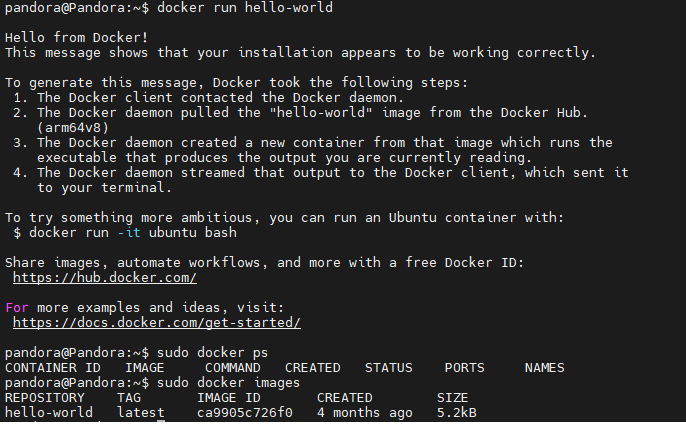
4. Verify Installation
Run the following command to confirm Docker is installed successfully:
sudo docker ps
sudo docker images
5. Set User Permissions (Optional) To run Docker as a non-root user, add your user to the Docker group:
sudo usermod -aG docker $USER
newgrp docker
Common Troubleshooting
1. GPG Key Error During Installation Try re-adding the key:
sudo apt-key adv --keyserver keyserver.ubuntu.com --recv-keys
2. Docker Daemon Not Starting Check the Docker service status:
sudo systemctl status docker
If it's not running, try:
sudo systemctl start docker
Post-Installation Recommendations
1. Regularly update Docker: sudo apt-get upgrade docker-ce
2. Enable Docker to start on boot: sudo systemctl enable docker
3. Check Docker version: docker version
4. View Docker system info: docker info
After completing these steps, your system will have Docker installed and ready for container-based development and deployment.
Adapted from the original YUAN Developer Hub article. Source ID: 251.